
Writing Page Titles & Meta Descriptions with Yoast SEO
Learn how to use Yoast SEO to write the title and description that appear when your site shows up in Google search results.
Every page on your website has two pieces of text that don’t appear on the page itself but appear directly in Google search results: the SEO title and the meta description. Getting these right is one of the easiest ways to improve how your site performs in search and how often people click through to it.
Yoast SEO is already installed on your Design Shop website, making managing these fields straightforward. This article walks you through what each field does and how to fill it in.
What Shows Up in Google?
When someone searches Google and your site appears in the results, they see three things:
- The SEO Title — shown as the blue clickable link
- The URL — shown in green below the title
- The Meta Description — the gray paragraph of text below the URL
You control the title and description through Yoast SEO. The URL is your page slug, which you can also set in WordPress.
Step 1: Open the Page Editor
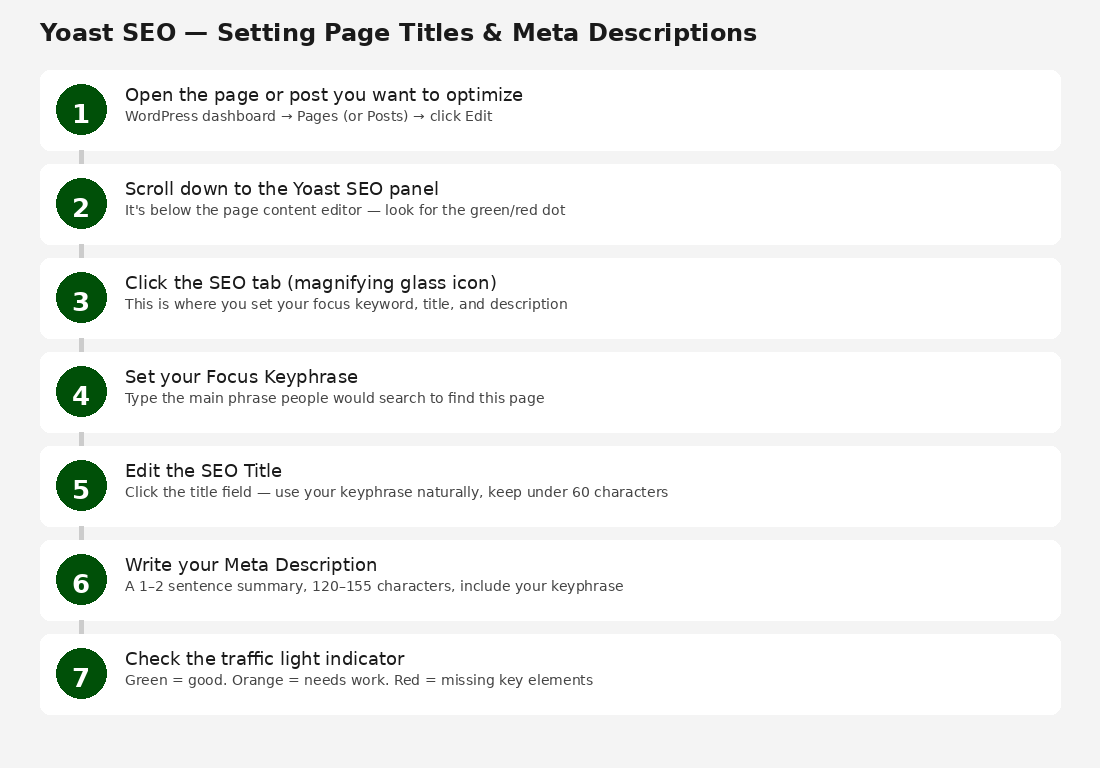
In your WordPress dashboard, click Pages in the left menu. Find the page you want to optimize and click Edit. This opens the WordPress block editor or the BeaverBuilder preview.
Step 2: Find the Yoast SEO Panel
Scroll below the page content editor until you see the Yoast SEO box. It shows a small colored circle — green, orange, or red — indicating your current SEO status. Click the box to expand it if it isn’t open.
If you don’t see the Yoast panel, look for Screen Options at the very top-right of the editor and make sure Yoast SEO is checked.
Step 3: Click the SEO Tab
Inside the Yoast panel, you’ll see two tabs. Click the SEO tab (the magnifying glass icon). This is where your title, description, and focus keyphrase fields are.
Step 4: Set Your Focus Keyphrase
The Focus Keyphrase is the main phrase you want this page to rank for in Google. Think about what someone would actually type to find this specific page.
- Registration page example: youth soccer registration Naperville
- Coaches page example: youth soccer coaching staff Valley FC
- Contact page example: contact Valley FC youth soccer
Each page on your site should target a different keyphrase. Using the same phrase on multiple pages confuses Google about which page is most relevant.
Step 5: Write Your SEO Title
Click inside the SEO Title field. Yoast shows a preview of how the title will appear in Google, along with a character counter. A good SEO title:
- Is 50 to 60 characters long — Yoast turns the bar green when you’re in range.
- Includes your focus keyphrase, ideally near the beginning.
- Includes your organization or team name.
- Reads naturally — it’s the first thing people see in search results.
Example: “Youth Soccer Programs in Naperville | Valley FC” — 50 characters, keyphrase at the front, team name at the end.
Step 6: Write Your Meta Description
Click inside the Meta Description field. Write 1 to 2 sentences describing what’s on the page and why someone should click through. Aim for 120 to 155 characters.
A good meta description:
- Mentions your focus keyphrase — Google bolds matching words in results, making your link stand out.
- Describes what the visitor will find on the page.
- Includes a soft call to action where it fits naturally — Register today, View the schedule, Learn more.
- Is written for humans, not robots — it should sound like a real sentence.
Example: “Register your child for spring and fall youth soccer in Naperville. Ages 4–18, recreational and competitive. Join over 2,000 families today.” — 147 characters.
Step 7: Check the Traffic Light
After filling in your fields, Yoast updates the colored circle at the top of the panel:
- Green — your title, description, and keyphrase are set up well.
- Orange — there are improvements available. Scroll down in the panel to see specific suggestions.
- Red — key elements are missing. Check the Yoast panel for a list of issues to fix.
Orange or red doesn’t mean your page is broken — it means there’s room to improve. Even addressing one or two suggestions makes a real difference.
Tips for Writing Good Meta Descriptions
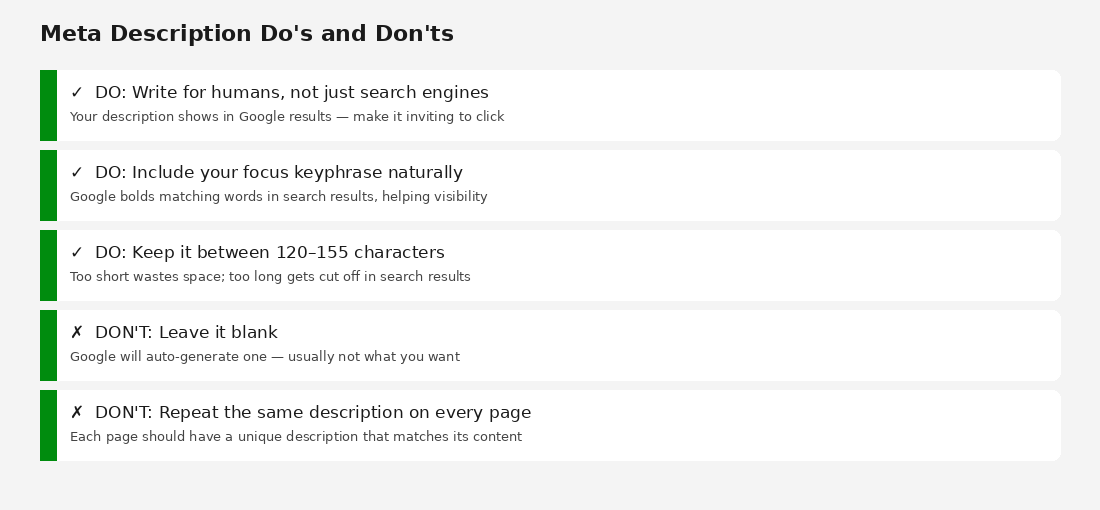
- Write for humans, not just search engines. Your description shows in Google results — make it inviting to click.
- Keep it between 120 and 155 characters. Too short wastes space; too long gets cut off.
- Never leave it blank. If you do, Google auto-generates one — usually not the best representation of your page.
- Give each page a unique description. Repeating the same text across pages hurts your search performance.
Common Questions
- What if I don’t have Yoast SEO on my site?
All Design Shop websites come with Yoast SEO pre-installed. If you can’t find the panel, contact your support team. - Will updating my meta description affect my ranking immediately?
No. Google re-crawls websites on its own schedule, usually within a few days to a few weeks. - I’m using BeaverBuilder — can I still set Yoast fields?
Yes. Exit BeaverBuilder back to the WordPress editor (click the X in the top bar). The Yoast panel appears below the content editor for all pages, including BeaverBuilder ones. - Should I fill in Yoast fields on every page?
Prioritize your most important pages first: homepage, program pages, contact, and about. For internal or less-trafficked pages, it’s less critical but still good practice.

