
WordPress Field Content: How to Mask Your Login Page with Defender Pro
Hide your WordPress login URL from bots and unauthorized users using Defender Pro’s built-in login page masking feature.
Every WordPress site defaults to the same login URL: yoursite.com/wp-admin or yoursite.com/wp-login.php. Because these addresses are universal and well-known, they’re routinely targeted by automated bots that try thousands of username and password combinations until something works. Login page masking is a simple, effective way to stop this.
By changing your login URL to a custom address, anyone — or any bot — trying the standard path will hit a 404 “Page Not Found” error instead of your login form. Only people who know the new URL can reach it.
Defender Pro (included on your Design Shop website) handles this in just a few steps.
Step 1: Open Defender Pro
In your WordPress dashboard, find Defender Pro in the left-hand menu and click it. If you see it listed under WPMU DEV, it may be nested there.
Step 2: Go to Security Tweaks
Inside Defender Pro, click Security Tweaks. This page lists recommended security settings — some may already be enabled on your site.
Step 3: Find “Mask Login Area”
Scroll through the list and look for Mask Login Area, which may also appear as Change Login URL, depending on your version. Click it to expand the options.
Step 4: Enter Your Custom Login Path
Type your new login path in the field provided. This is the part of the URL that appears after your domain name. For example: yoursite.com/team-portal
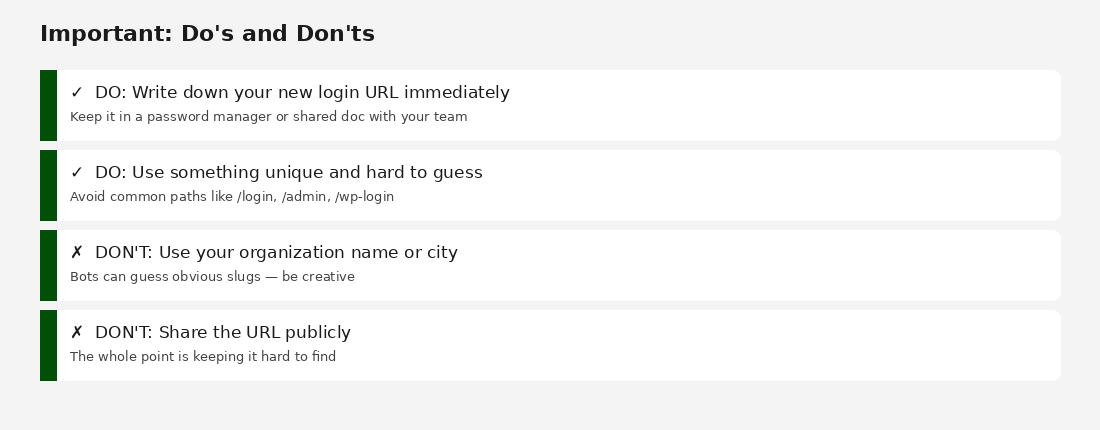
Avoid obvious paths like /login, /admin, or your organization name. Those are easy to guess. Choose something unique to your team — a phrase that makes sense internally but wouldn’t be obvious to outsiders.
Step 5: Save Your Changes
Click Save or Activate. The change takes effect immediately. Your original /wp-admin and /wp-login.php URLs will now return a 404 error.
Step 6: Save Your New Login URL Right Now
Before you close this page, copy your new login URL and save it somewhere secure — a password manager like 1Password or LastPass, or a private shared team document. This step is critical.
If you forget the custom URL, you will be locked out of your site. Recovery requires direct database access through your hosting provider (FlyWheel or WPEngine), which takes time and support involvement.
Frequently Asked Questions
- Will this break my site?
No. Login masking only affects the login page. Your public website, content, and BeaverBuilder pages are completely unaffected. - Can I change the URL again later?
Yes. Go back to Defender Pro > Security Tweaks > Mask Login Area at any time. Update your saved bookmark immediately after making a change. - Does this protect against all attacks?
Login masking blocks automated brute-force bots targeting the default URL. For full protection, also use strong passwords, two-factor authentication, and regular backups. - What if I forget the URL?
Contact your Design Shop support team or your hosting provider. They can help restore access through the database.

