How Your Register Page Program List Works
Your Register page lists programs straight from LeagueApps. Learn how to update it and what families see.

Transcript
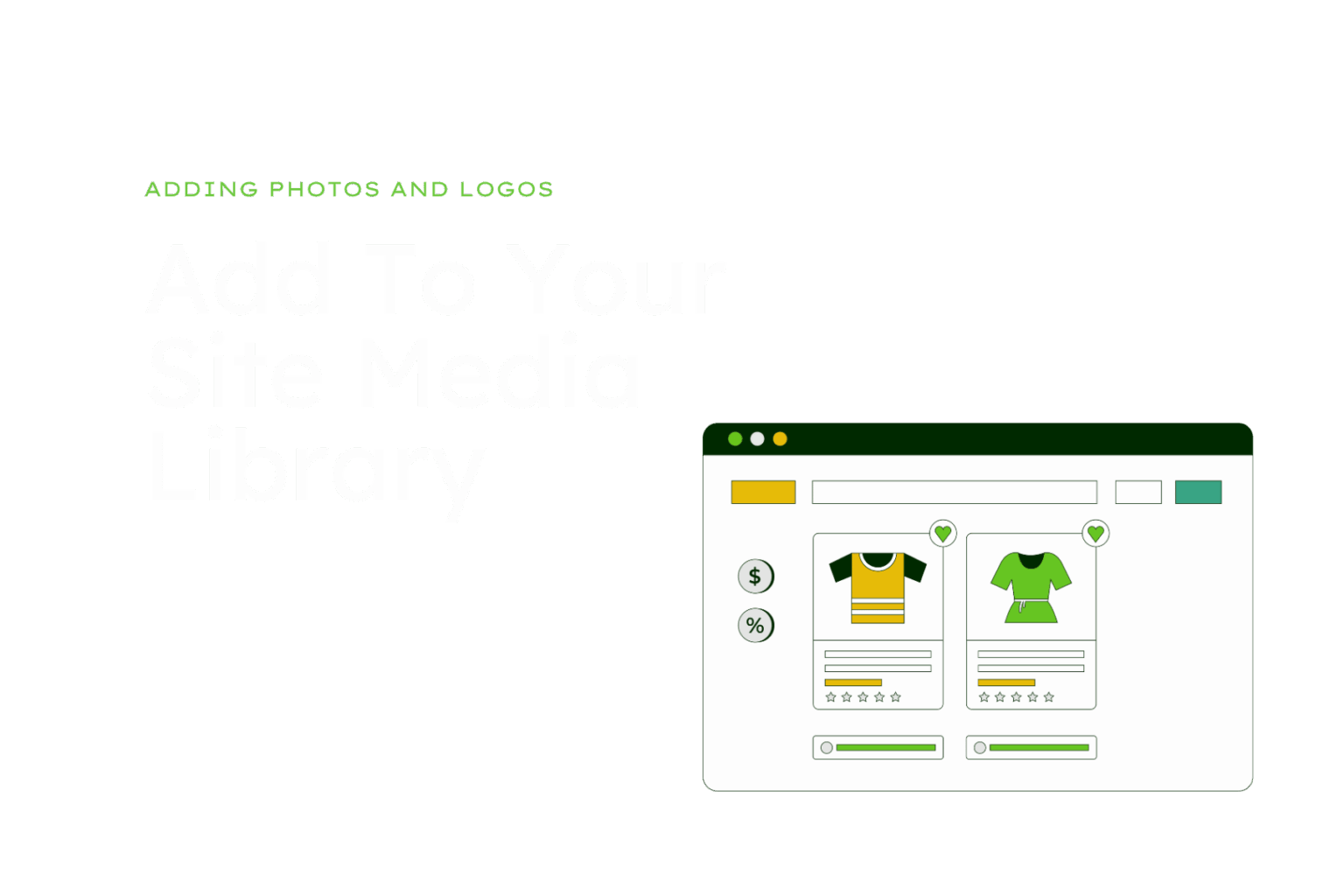
The program list on your Register page pulls your programs straight from your LeagueApps account and shows them in your site’s own fonts and colors, with filters, a search box, sortable columns and a Register button on each program. Nothing is typed into the page: you manage this list in LeagueApps.
Older sites: if your site was built before the newer Design Shop toolkit, your Register page may still use the older LeagueApps widget, so it can look different from this tutorial. The LeagueApps side works the same way.
Add or update a program
- Create or edit the program in LeagueApps.
- Wait up to 10 minutes. Your site refreshes its copy of your programs on its own.
- Reload your Register page to check it.
What families see
- Filters and search at the top, such as age group or month. A filter with fewer than two choices hides itself, so a missing filter isn’t an error.
- Register while registration is open. It opens the program’s page on LeagueApps, where families see the details, waivers and options before they pay.
- Sold Out when no spots are left, and Closed after the registration end date. The list works these out on its own.
- View schedule and View standings on leagues that are in season, once those pages are published in LeagueApps.
- Cancelled programs never show a Register button.
Fix things at the source
- A wrong name, date, price or description is fixed in LeagueApps, not on your website. Then wait a few minutes and reload.
- Some sites have a page for one location or one division. Those pages choose programs by the Location, Season or Experience Level set in LeagueApps, so fill them in on every program and keep the names consistent.
- A program with no location won’t show on a location page, and one with no season won’t show on a season page.
- Renaming a season (for example, Anthem Fall to Anthem Fall 2026) drops those programs off that page until the Design Shop updates it. Let us know before you rename.
Tips
- If LeagueApps can’t be reached, your site keeps showing the last list it had for up to 7 days.
- After any change, click one Register button to make sure it opens the right program, and check the page on your phone.
- The list shows LeagueApps programs only. Local events, sponsor nights or tryout forms belong on other pages.
Change the list’s settings
Open your Register page, launch Beaver Builder and click the program list. In the builder it’s called Programs. The settings are split into four tabs.
Programs tab: what to show
- Program types: tick the kinds of programs to list (Tournaments, Leagues, Camps, Clinics, Classes, Events, Club teams). Tick only what you sell publicly. With nothing ticked, the list shows everything, including club team fees.
- Audience, Sport and Season status narrow the list further.
- Hide sold-out programs and Hide cancelled programs remove programs families can’t act on.
- Hide programs whose registration has closed also hides leagues that are in season, along with their schedule links. Leave it off if you have leagues in season.
- Link the program name to its LeagueApps page: Yes makes the program name open the full program details.
Columns tab
- Remove any column that’s blank for your programs. Check the live page to see which ones are empty.
- Header text renames a column, for example Season as “Games”.
- Always keep Program and Register Button.
Filters tab
- Add or remove filter dropdowns such as Month, Age Group or Location.
- To turn all filters off, set Show filters to No. Don’t delete the filter rows: once they’re all gone, they can’t be added back.
- On phones the filters stack above the list, so keep two or three. On a short list, turn off Show a search box.
Style tab
- Show programs as: Table or Cards.
- Preset: Modern (the default for new lists), Striped rows, Bordered grid, Minimal lines, Framed or None. If text looks faint, choose Modern.
- Button: turn the schedule and standings links on or off, and change the Schedule link text and Standings link text.
- Empty states: write the message families see when nothing is listed.
When you’re done, click Done, then Publish. Click one Register button to check it, and look at the page on your phone.
Contact Design Shop for
Button colors (they come from your site’s overall button style), connecting a LeagueApps account, and pages for one location, season or division. These go on an upcoming sprint.