
How to Add Media to the Media Library
WordPress offers a convenient solution with its Media Library if you’re managing a youth sports website and need to handle various media files like photos, game videos, or PDF schedules. Here’s how to make the most of it.
Transcript
WordPress offers a convenient solution with its Media Library if you’re managing a youth sports website and need to handle various media files like photos, game videos, or PDF schedules. Here’s how to make the most of it:
How to add Media to the Media Library
-
- Log in to Your WordPress Dashboard: Access your website’s login page and enter your username and password to reach the WordPress dashboard.
- Navigate to the Media Library: From the dashboard, hover over the “Media” option in the left-hand menu and click “Library” to access the media library.
- Upload Media: Once in the media library, click the “Add New” button at the top of the page. This will open the media uploader.
- Select Files to Upload: Click the “Select Files” button to browse your computer and select the media files you want to upload. You can upload images, videos, audio files, and documents.
- Upload and Wait: After selecting your files, click “Open” (or equivalent) on your computer’s file browser to begin uploading. The files will be uploaded to your media library, and a progress bar will indicate the upload status.
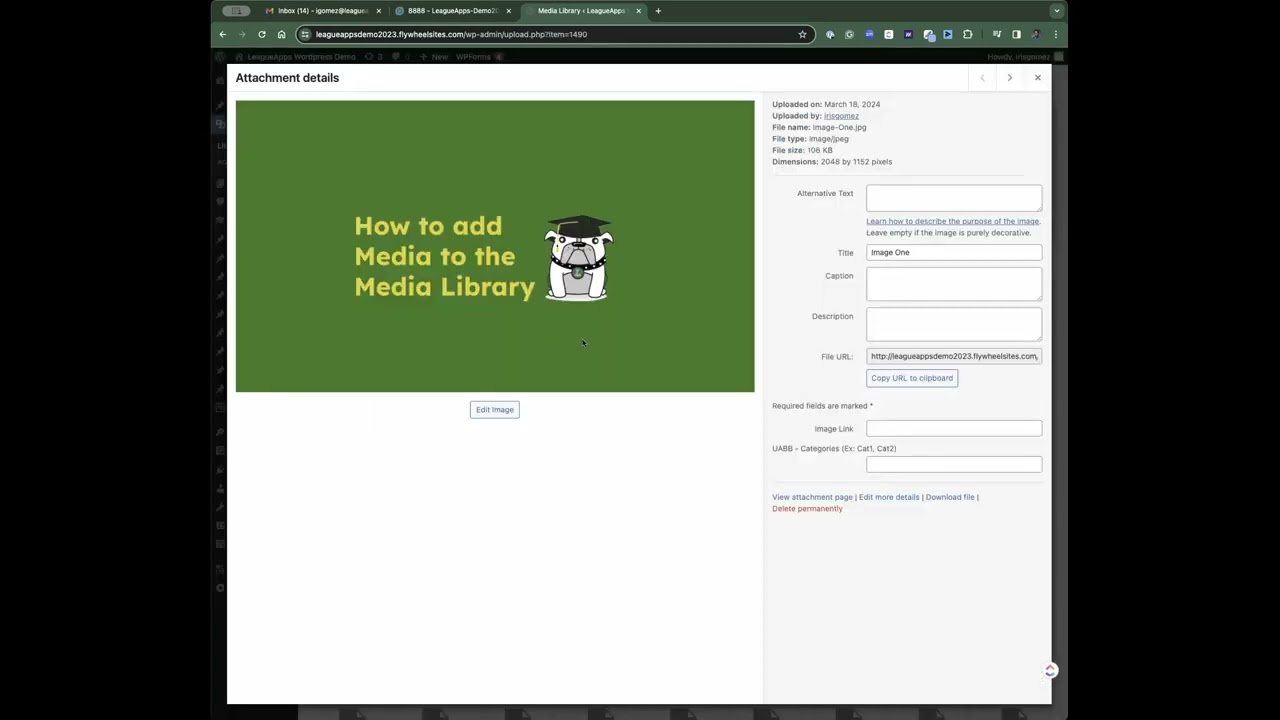
- Add Title and Description (Optional): While the files upload, you can add titles, descriptions, and other metadata to help organize and describe your media. Click on the uploaded file in the media library to edit its details.
- Insert Media Into Posts or Pages (Optional): Once uploaded, you can insert the media into your posts or pages by clicking the “Add Media” button within the post or page editor. This allows you to select files from your media library and insert them directly into your content.
- Manage Your Media: After uploading media, you can manage it by editing, deleting, or organizing it within the media library. Search for specific media files using the search bar or filter options.
- View Your Media: Visit your website’s front end to see your uploaded media. Depending on your use, media files may appear in galleries, embedded within posts or pages, or linked directly.
- Share Your Media (Optional): If you’ve uploaded media you want to share with your audience, consider creating galleries, embedding videos, or adding images to posts and pages to showcase your content.
That’s it! You’ve successfully added media to the WordPress media library, ready to use across your website as needed.

