Updating Social Links and Contact Details in Partner Settings
Set your social links, phone, email and address once in Partner Settings, and every page that shows them updates.
Transcript
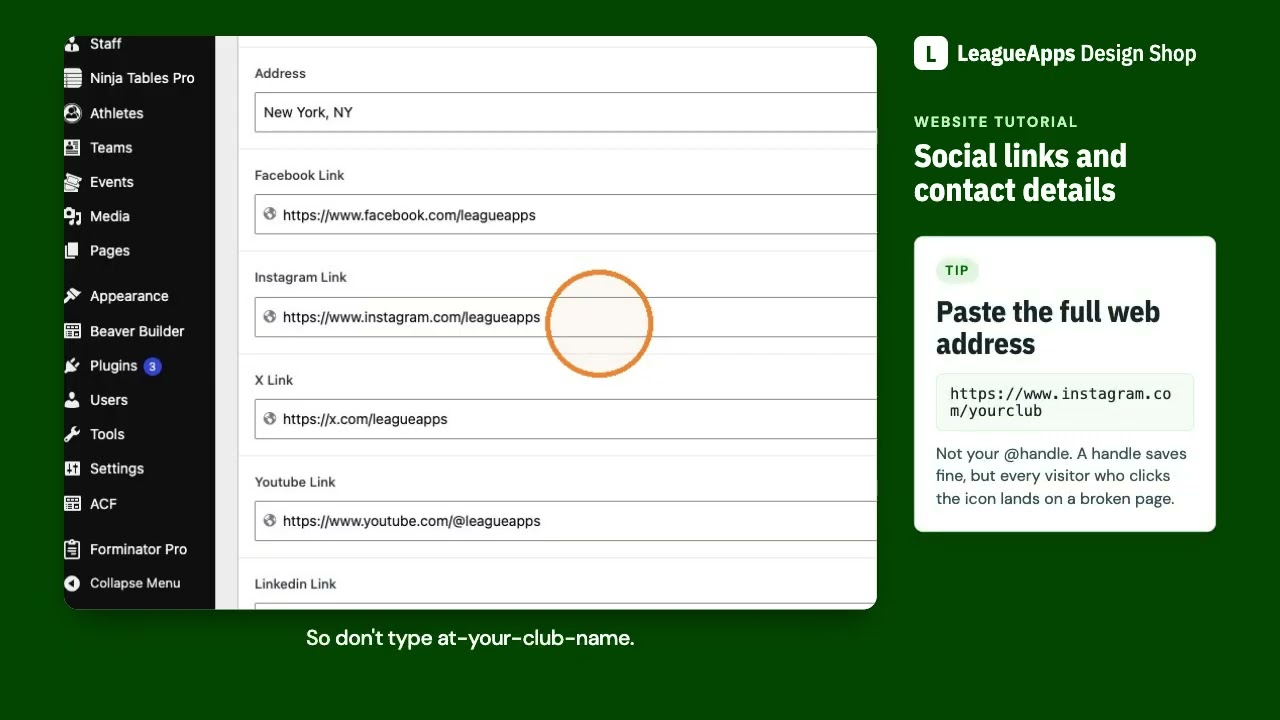
Partner Settings holds your club’s social links and contact details. Your social icons, Contact us page, Privacy Policy page and contact bands all read from it. Change a value once, and every place updates. Nothing to change in Beaver Builder.
Change your social links
- In the WordPress dashboard, go to Dashboard then Partner Settings.
- Find the Facebook, Instagram, X, YouTube, LinkedIn and TikTok fields.
- Paste the full address of each page from your browser, starting with
https://. - Save.
Remove a network
- In Partner Settings, empty that network’s field.
- Save. The icon disappears everywhere.
Update your contact details
- In Partner Settings, replace the phone, email and address with your own.
- Save. Your Contact us and Privacy Policy pages update by themselves.
Tips
- A handle is not an address. Typing @yourclub saves, but the icon links to a dead page. Paste the full address, like
https://www.instagram.com/yourclub. - New sites may start with LeagueApps’ own social links and sample contact details (phone 01 2345678, email designshop@leagueapps.com, address New York, NY). Replace or empty every one.
- If you empty every social field, the icon row shows an empty space. Check the page afterward.
- The six networks always show in the same order: Facebook, Instagram, X, YouTube, LinkedIn, TikTok. Other networks can’t be added here.
- After saving, click each icon in your header and footer, on desktop and phone.
Contact Design Shop for
Icon size, color, shape and spacing, and adding networks not in the list (such as Threads or Snapchat).